
Your Apple Watch as a safety device: fall detection, Medical ID, and Emergency SOS
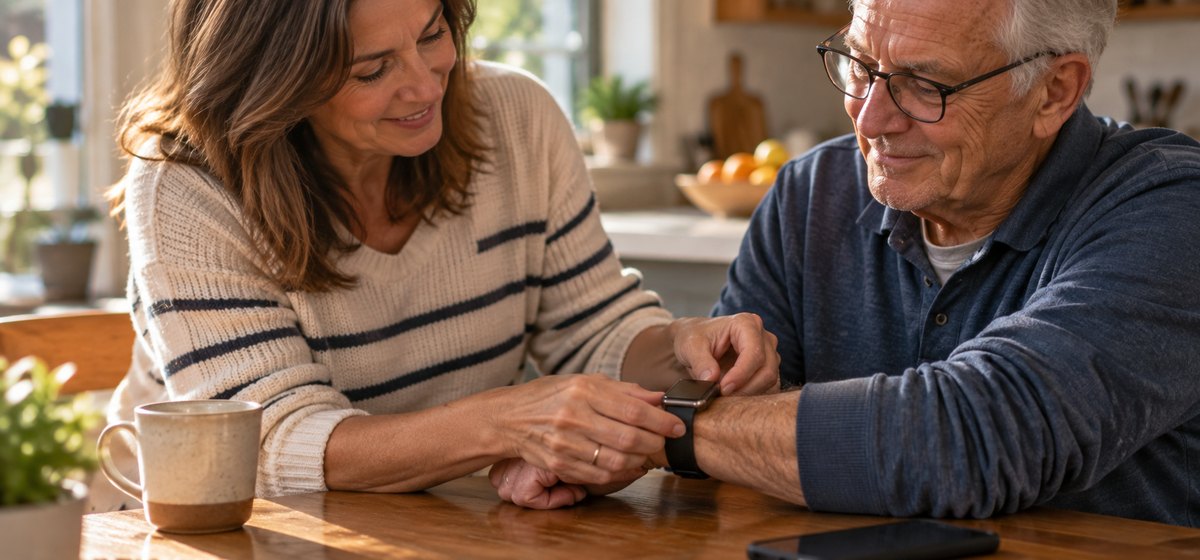
I get some version of this question almost every week, usually from an adult child at their parent’s kitchen table with me. “If Mom falls and can’t get to her phone, what actually happens?” Or from a client heading out for a solo trail run: “If I go down out there, does this thing actually call anyone?”
The answer is yes, mostly, if it’s set up right. Apple has built a real safety net into the Apple Watch: fall detection, crash detection, Emergency SOS, Medical ID, Check In, heart monitoring, even satellite connectivity on newer models. Almost none of it works the way people assume out of the box, and most of it needs a few minutes of setup. Here’s every safety feature on the current lineup, what it does, how to turn it on, and where it falls short.
Fall detection
Fall detection uses the watch’s motion sensors to recognize the pattern of a hard fall, not a stumble. If it detects one, it taps your wrist and offers to call emergency services. If you don’t respond and it senses you’ve been immobile for about a minute, it sounds an alert and starts a 30-second countdown, then calls emergency services and texts your emergency contacts with your location, no button press required.
To turn it on: on the watch, go to Settings, then SOS, then Fall Detection. From the paired iPhone, open the Watch app, tap Emergency SOS, then toggle it on. A separate setting, Wrist Detection, found in the iPhone Watch app under Passcode, needs to be on too, or the automatic call after 30 seconds never fires.
If you’re 55 or older, Apple turns this on automatically during setup. Under 55, it defaults to “Only on during workouts,” and you have to switch it to “Always on” yourself. For a parent’s watch, I always check this directly rather than trust the age default, since plenty of watches get activated on an adult child’s Apple Account and the age math doesn’t line up. False alarms happen, yard work and a hard high-five can trigger it, but that’s a reason to expect an occasional false positive, not to skip the feature. It works on Apple Watch SE and Series 4 and later.
Crash Detection
Crash Detection is fall detection’s cousin, tuned for car accidents using motion sensors plus the microphone, barometer, and GPS. When it triggers, the watch sounds an alarm and gives you 10 seconds to cancel or call emergency services yourself. No response, and it starts a 30-second countdown, then calls automatically, tells dispatchers you’ve been in a severe crash, shares your location, and texts your emergency contacts.
It’s on by default, no setup needed, and works on iPhone and Apple Watch independently. It’s tuned for severe crashes, not minor parking-lot taps, and on the watch side it needs relatively recent hardware: Series 8 or later, SE (2nd generation), or any Ultra.
Emergency SOS
This is the one everyone should know cold, since it works even if fall or crash detection never triggers anything. Press and hold the side button until the SOS slider appears; drag it to call immediately, or keep holding, and at the end of the countdown it calls emergency services. Release the button early to cancel. After the call ends, the watch texts your emergency contacts your location automatically unless you stop it, and they’ll get updates if your location changes for a while.
The emergency contacts list lives in the Health app on the paired iPhone, under your profile picture, then Medical ID. Set this up before you need it: two or three real people, not whoever happened to be in the list from years ago.
Medical ID
Medical ID is a card of conditions, medications, allergies, blood type, and emergency contacts, visible right from the lock screen without unlocking the device. Paramedics are trained to check for it: on a locked iPhone, tap Emergency on the passcode screen, then Medical ID. On the watch, press and hold the side button until the sliders appear, then drag the Medical ID slider.
Set it up in the Health app: tap your profile picture, then Medical ID, then Edit. Turn on “Show When Locked,” or none of it is visible in an emergency. There’s also “Share During Emergency Call,” which sends your Medical ID to 911 dispatchers automatically when you call or text from iPhone or Apple Watch. It’s set up once on the iPhone and syncs to the paired watch on its own.
Check In
Check In lets you tell a contact you’re heading out, and it automatically confirms when you’ve arrived. If you stop moving somewhere unexpected or take much longer than normal, it checks with you first; no response within 15 minutes, and it notifies that contact with your last location, route, and battery level.
Start it from Messages, or with a swipe from inside a workout. You can base it on a destination you’re heading to or a simple timer, and you choose how much your contact sees, Limited or Full, in Settings under Messages; either way the data is end-to-end encrypted, so only your chosen contact can read it. On a cellular watch, Check In runs without the iPhone present, which matters for a solo run. For a solo athlete, I actually recommend this ahead of fall detection, since it catches situations fall detection can’t, like getting lost or a medical event that doesn’t look like a fall.
Siren on Apple Watch Ultra
Ultra models have a loud, purpose-built siren meant to help someone find you or scare off a threat, not call for help electronically. Press and hold the Action button until the slider appears and drag it, or keep holding through the countdown. You can also open the Siren app or ask Siri. It’s Ultra-exclusive; SE and standard Series watches don’t have it.
Heart monitoring and hypertension notifications
Irregular rhythm notifications passively check your heart rhythm and alert you if it repeatedly looks like atrial fibrillation. Set it up in the Health app on the iPhone: Browse, then Heart, then Irregular Rhythm Notifications, then Set Up; after that, you can manage it from the Watch app under Heart. It’s not intended for anyone under 22 or already diagnosed with AFib.
Newer are hypertension notifications, which shipped with watchOS 26 on Series 9, 10, 11, and Ultra 2 and 3, not SE. It analyzes how your blood vessels respond to your heartbeat over rolling 30-day windows and flags a consistent pattern of high blood pressure. It’s meant for people 22 and older without an existing diagnosis, and not for anyone pregnant. Like the AFib alerts, it’s a nudge to get checked, not a diagnosis.
Walking Steadiness
This one runs on the iPhone, not the watch, using its motion sensors while it’s in a pocket or waistband. It scores your walking stability as OK, Low, or Very Low and estimates fall risk over the next year, notifying you in the Health app if it drops. I bring it up here because it pairs naturally with fall detection: one warns before a fall, the other responds after. Worth turning on for anyone in the “aging parent” category.
Family Setup: a watch without its own iPhone
Family Setup lets a watch work as its own connected device, phone number, Messages, Find My, all of it, without a paired iPhone nearby. I use this most for kids without their own phone yet, and parents who don’t reliably carry an iPhone.
You’ll need a cellular Apple Watch (SE or Series 4 and later with cellular), an adult’s iPhone to run setup, an Apple Account with two-factor authentication for both people, and a Family Sharing group that includes the watch wearer. Cellular is what makes it work: Emergency SOS, Check In, and fall detection’s automatic call all function even if the watch is out of range of any phone, which for a parent who leaves their iPhone on the counter is the whole point.
Find My for the watch itself
The watch shows up in Find My just like an iPhone, either through the paired iPhone’s account or, with Family Setup, on its own line under the family member’s name. Worth confirming this is actually working, since a watch that’s lost or left behind can’t call for help either.
Emergency SOS via satellite
New as of the Series 11 and Ultra 3 generation: when you’re off both cellular and wifi, these models can send an Emergency SOS as a text over satellite instead of a phone call. Ultra 3 includes it standard, and Series 11 and the new SE now support satellite connectivity in supported regions, typically free for a period after activation. For most people staying in San Diego proper, cellular coverage is solid enough that this won’t come up often. For anyone regularly in the backcountry, Cuyamaca, Anza-Borrego, or further out, it’s a real reason to consider a satellite-capable model.
Which watch, for safety specifically
As of August 2026, Apple sells three current lines: Apple Watch SE (from $249), Series 11 (from $399), and Ultra 3 (from $799, cellular and satellite standard). SE and Series 11 let you choose GPS-only or GPS plus cellular.
For an aging parent, I usually recommend Series 11 with cellular, or SE with cellular if budget matters more. Both cover fall detection, Emergency SOS, Medical ID, and Check In, and cellular means those features work even when the iPhone gets left behind. Series 11 adds hypertension notifications and a larger display, worth it for most parents.
For a kid on Family Setup, SE with cellular is the practical choice: Emergency SOS, Find My, Messages, and calling, without paying for features a nine-year-old doesn’t need.
For a solo runner, surfer, or hiker, it depends on where you go. Mostly in town, Series 11 with cellular covers you. Regularly off the grid, Ultra 3’s satellite SOS, longer battery life, and Siren make it the safer pick.
Setting it up right matters more than which watch you buy
Almost every safety failure I’ve seen with these watches isn’t a hardware problem, it’s a setup problem: fall detection left on the wrong default, Medical ID never filled in, an outdated emergency contacts list, Wrist Detection off so the automatic call never fires.
This is exactly what I do on-site, often with the parent and adult child both in the room, so everyone understands what’s set up and why. I’ll set up Family Setup, Medical ID, emergency contacts, fall detection, and Check In in one visit and test it before I leave. If you want this squared away for a parent, a kid, or yourself, book an appointment at sdmactech.com/get-started or call me directly at (858) 217-4609.
You must be logged in to post a comment.