
You Quit the App. Why Is It Still Running?
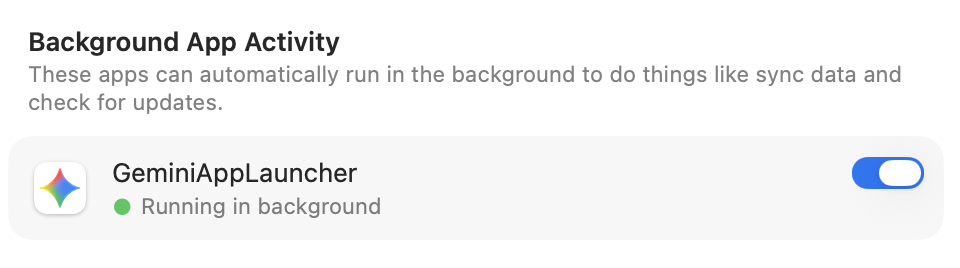
Quitting a Mac app doesn’t always stop everything it’s doing. Some apps leave background processes running to sync files, check for updates, or finish other work. In macOS 27 Golden Gate, Apple makes this activity more visible: you’ll see a notification the first time an app continues running after you quit, and hovering over its Dock icon reveals a Running in Background label. The notification doesn’t mean anything is wrong; the app may be finishing work you asked it to do. If you don’t need its background activity, or suspect it’s slowing your Mac, Control-click its Dock icon and choose Stop Running in Background. To prevent future background activity, go to System Settings > General > Login Items & Extensions and turn off the app under Background App Activity. Be selective: turning off this permission can interfere with syncing or automatic updates. If an app stops working as expected, turn its permission back on.
Mac acting slow and you suspect it’s more than one chatty app? A tune-up visit sorts it out: book one or call (858) 217-4609.
Featured image created with ChatGPT
(In-body screenshot courtesy of the TidBITS Content Network)
You must be logged in to post a comment.