Two-factor authentication explained: why SMS codes are the weakest option
If you have ever typed a six-digit code from a text message to log into your bank, you have used two-factor authentication, or 2FA. The idea is simple: you prove who you are with something you know, like a password, plus something you have, like your phone. Even if a crook steals your password, they still need that second thing.
Here is the problem: not all “something you have” is equally hard to steal. Text message codes, which most banks and websites still default to, are the weakest form of 2FA you can use. Let me walk you through why, what is stronger, and how to set it up without turning your phone into a chore.
What 2FA actually is
Two-factor authentication means you need two different types of proof before an account lets you in:
- Something you know: a password or PIN.
- Something you have: a phone, an app, a physical key, or a device that is already trusted.
- Something you are: a fingerprint or face scan, usually layered on top rather than used alone.
The point is that a stolen password by itself should not be enough. If someone phishes your password off a fake login page, 2FA is supposed to stop them cold because they do not have your phone. But “something you have” can mean very different things, and some are a lot easier for a criminal to get than you would think.
Ranked: weakest to strongest
SMS text codes: the weakest link
Text codes feel secure because you are holding the device that received them. But the code is tied to your phone number, not your phone, and numbers can be moved. Here is why SMS 2FA keeps failing people:
- SIM swapping. A scammer talks your carrier into moving your number to a SIM card they control. Your phone goes dead. Theirs starts receiving your texts, including every 2FA code.
- SS7 interception. SS7 is an old telecom protocol carriers use to route calls and texts. Known weaknesses let sophisticated attackers intercept SMS messages in transit, no SIM swap required.
- Phishing relay. A fake login page grabs your password and your SMS code in real time, then instantly uses both on the real site before your code expires.
- Your phone number is the master key to everything. Banks and email providers treat it as a recovery path. Once someone controls your number, they can reset passwords on accounts that never even used SMS for 2FA.
Here is how it plays out. Your phone suddenly shows “No Service” for no reason. A fraudster with your name and address from some old data breach talked their way past your carrier’s security questions and ported your number to a new SIM. Within minutes they are resetting your email and bank passwords, and the codes land on their phone, not yours. By the time you reach a carrier store, your checking account can already be empty.
SMS is still better than no 2FA at all, so if it is your only option on an account, use it. Just do not stop there.
Email codes: better, but a shaky recovery chain
Getting your code by email instead of text avoids the SIM swap problem, but it just moves the weak point. If your email account only has a weak password or SMS-based recovery, you have relocated the vulnerability, not fixed it. Email codes are fine as a backup, not your main line of defense.
Authenticator app codes (TOTP): the practical sweet spot
This is where I point most clients. Time-based one-time passwords, or TOTP, are six-digit codes generated by an app on your phone instead of sent over text. The code changes every 30 seconds, generated from a secret key set up between your device and the account, so there is no message to intercept and no phone number to steal.
- Apple’s Passwords app, built into iOS 18, iPadOS 18, and macOS Sequoia and later, stores these codes alongside your saved passwords and passkeys, syncing through iCloud and autofilling on any Apple device.
- 1Password, if you already use it for your password vault, does the same thing and works across Apple, Windows, and Android.
- Google Authenticator, the app that popularized this approach, still works fine if you prefer to keep codes separate from your password manager.
The nice part about Apple Passwords or 1Password is that you are not juggling a second app just for codes. Your password and your code live in the same place, so you will actually use it.
Push approvals: convenient, with a real weakness
Some business tools, like Microsoft 365 or Duo, use push approvals instead of codes. You get a notification asking “Approve or deny this sign-in?” and you tap a button.
This convenience created a new attack called MFA fatigue. An attacker who already has your password sends a flood of approval requests, hoping you get annoyed and tap “approve” just to stop the notifications, or that one lands while you are half asleep. This exact technique hit a major rideshare company’s internal systems in a well-publicized breach. Push approvals only work if you stay alert every time.
Hardware security keys: strong and phishing-resistant
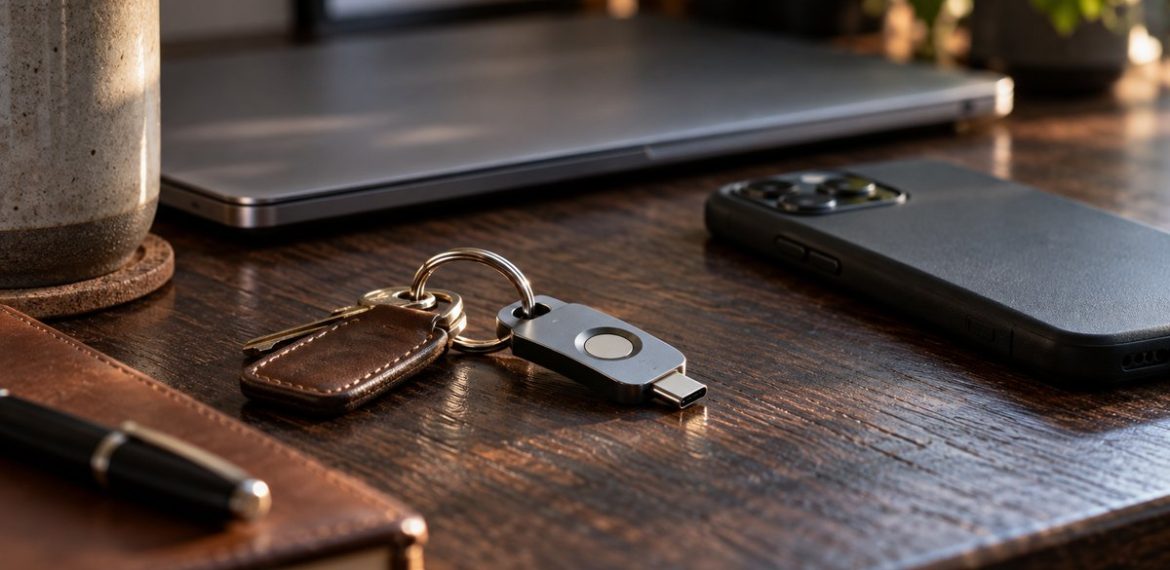
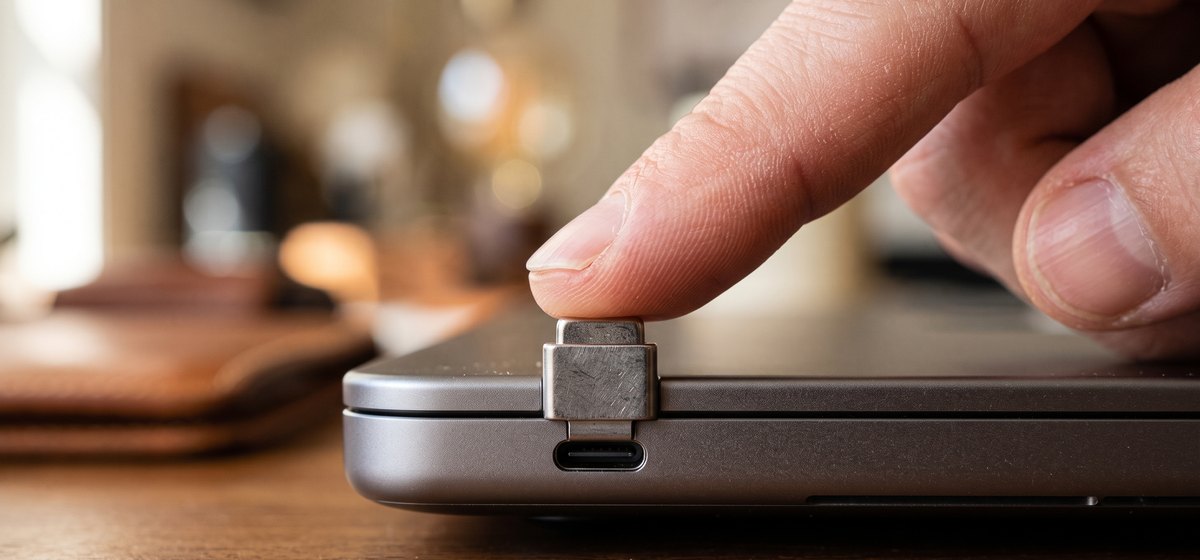
A hardware security key is a small physical device, like a YubiKey, that plugs into a USB port or taps over NFC. It only responds to the real website it was registered with, which makes it resistant to the phishing relay trick that defeats SMS and even some app codes.
Apple supports security keys as an option for your Apple Account, built for people who want the strongest protection: journalists, public figures, business owners handling sensitive client data, or anyone who has been targeted before. Apple requires at least two registered keys so a lost or broken one does not lock you out; turning keys on replaces the six-digit codes, and removing all of them from a signed-in device switches the account back to codes. Lose every key and every trusted device at once, though, and Apple cannot get you back in, so treat the keys like cash. More setup than an app, but worth it for the right person.
Passkeys: where all of this is headed
The method quickly replacing passwords and codes altogether is the passkey. It uses your device’s Face ID, Touch ID, or PIN to prove it is you, and it is cryptographically tied to the one real website, so there is nothing to phish and nothing to intercept. No code, no text, no app to open. I will cover exactly how passkeys work, and how to turn them on, in a full article coming to this blog later this month.
Set it up in this order
Do not try to fix every account in one sitting. Work through them in order, since each one protects the accounts below it:
- Email first. It is the recovery path for everything else. Secure it with an authenticator app or a passkey.
- Apple Account. 2FA here is mandatory and runs through your trusted devices, not SMS. When you sign in somewhere new, the code appears automatically on your other Apple devices, with a text message only as a fallback.
- Google Account. Same logic, and it protects any work files in Gmail or Workspace.
- Bank and financial accounts. Move off SMS to an authenticator app wherever the bank allows it.
- Social media. These get hijacked constantly and used to scam your friends.
Storing backup codes properly
Most services give you one-time backup codes for emergencies when you set up 2FA. Do not screenshot them into your camera roll or save them in a text file on your desktop. The safest place is inside your password manager, already encrypted and backed up. A printed copy in a locked drawer or home safe works too.
What to do if you lose your phone
Losing the device your authenticator codes live on is not the disaster it seems like in the moment, as long as you planned ahead.
- Codes in Apple Passwords or 1Password are backed up to the cloud. Sign into a new device and everything comes back, codes included.
- If you saved backup codes somewhere safe, use one to get back in and re-enroll.
- For your Apple Account, another trusted device like an iPad or Mac lets you approve the sign-in. For extra insurance, you can also name up to five Recovery Contacts, trusted people who can read you a recovery code from their own Apple device if you are ever locked out. It is a five-minute setup in your Apple Account settings.
- Fully locked out with neither? Apple’s account recovery process can take several days or more and requires proving your identity, so treat it as the last resort it is.
The five minutes it takes to save backup codes now saves you a genuinely stressful week later.
Getting this set up right
Two-factor authentication only works if it is set up correctly across every account that matters, and most people do it once and never circle back. That is how a bank stays on SMS for three years.
SD Mac Tech sets up 2FA across all your accounts and devices in one on-site visit. I move you off SMS wherever possible, sync your authenticator codes and passkeys across your Apple devices, and store your backup codes somewhere safe, not floating in a screenshot. Book a visit at sdmactech.com/get-started or call (858) 217-4609.
You must be logged in to post a comment.