
The year-end tech checklist for San Diego small businesses
The last six weeks of the year are a good time to clean up the technology side of a small business. Many renewals land at the start of the year, tax season is close, and a few quiet weeks around the holidays give you time to do it right.
This is the list I go through with San Diego business owners. You can do most of it yourself in an afternoon.
Renewals and licenses
Make a list of everything that renews: software subscriptions, domain names, website hosting, email, antivirus, and any cloud storage. Write down the renewal date, who pays, and which credit card is on file. Check for expired cards on file, because a dead card is how a domain name lapses or a business email stops working.
While you are at it, cancel what nobody uses. Most offices pay for at least two or three subscriptions that a former employee signed up for.
Check your domain name’s renewal date and turn on auto-renew. Losing your domain means losing your email address and your website at the same time.
Backups: verify, do not assume
A backup you have never restored from is a guess. At least once a year, pick a file and restore it. Then pick a whole folder and restore that. If the restore fails or takes a day, you want to know now and not during a real emergency.
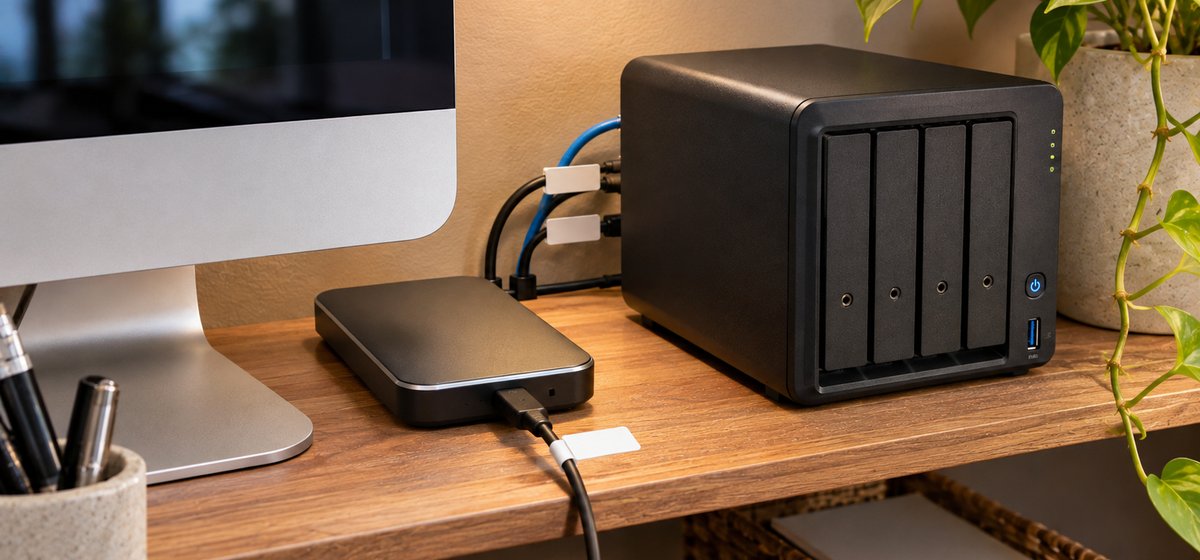
Check that the backup is covering the right machines, including the laptop that moved to someone’s home. Check how much space is left. Check that you have a copy somewhere other than your office, since a fire, a theft, or a broken water pipe can take out the computer and the backup drive together. I explain the setup I use in how I back up a San Diego small business.
Offboarding: close the doors
List everyone who has left in the past year, including seasonal staff and contractors. For each one, check that their email, shared drives, software accounts, and building or alarm codes are shut off.
Forward or archive any mailbox with customer messages before you delete it.
Device management
If your team uses Macs, iPhones, or iPads, check that every one is accounted for. Who has which laptop? Which phones have company email on them? Are any old machines sitting in a closet with data still on them?
An MDM, or mobile device management system, lets you push updates, enforce passcodes and encryption, and wipe a lost device remotely. For a team of three it may be overkill. For a team of ten with laptops going home every night, it quickly earns its place. I explain when it makes sense in my guide to Apple MDM for small business.
Passwords and sign-in security
This is the area where I see the most trouble. Look for these:
- Shared passwords on a sticky note or in a spreadsheet
- The same password used on more than one business account
- Two-factor authentication missing from email, banking, and your accounting software
- Staff using personal accounts for business tools
A business password manager with shared vaults fixes most of these. Turn on two-factor authentication on email first, because email resets everything else. Where an app offers passkeys, use them.
Updates and old hardware
Check that every computer is on a current version of macOS and every router has current firmware. Replace anything the manufacturer no longer updates. Old routers are one of the easiest ways into a small office network. If a Mac is too old to update, plan its replacement now and not when it fails during a busy week.
Write it down
Finish with a single page that lists your accounts, who owns each one, where the backups are, and who to call. If something happens to you or your office manager, someone else should be able to find it. Keep it somewhere safe and not on the same computer it describes.
Want help getting this done?
I do this kind of review on site for small offices across San Diego, and I can set up the fixes as I go. It is part of what my Mac managed IT services cover on an ongoing basis, and I am also happy to do a one-time cleanup before the year ends.
Call me at (858) 217-4609 to talk through your office. A call under 10 minutes is free. Or book a visit.
You must be logged in to post a comment.