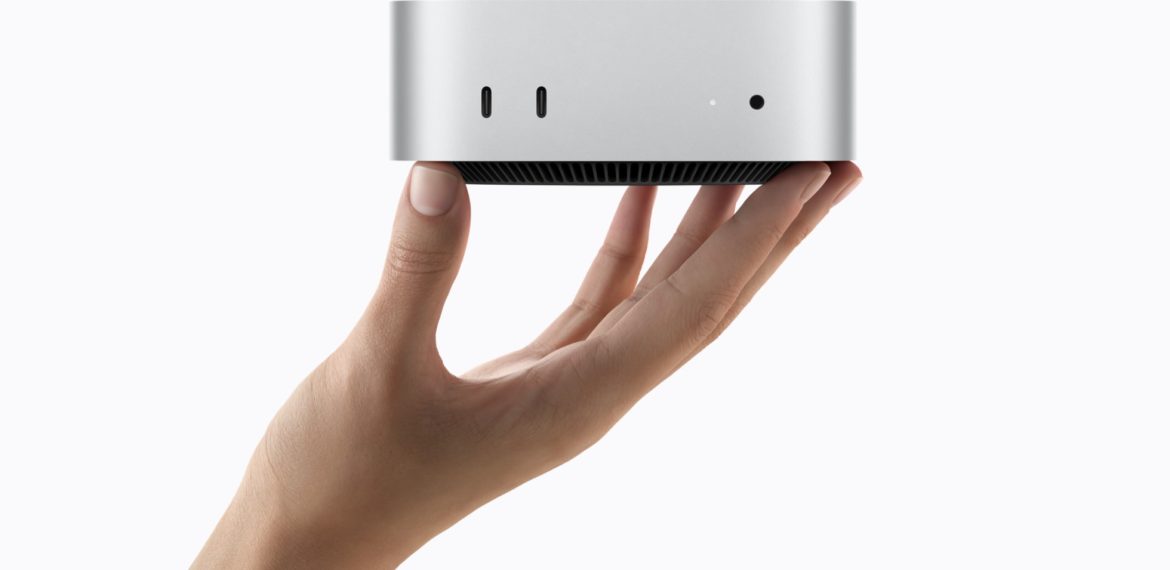
The $899 Mac mini M6 might be the only desktop your business needs
Apple announced a new Mac mini on August 25, and it’s a real jump, not the usual small spec bump. The base model starts at $899, preorders are open now, and it ships and hits stores on September 22, 2026. There’s also a beefed-up $1,699 M5 Pro version for people who actually push their machine hard.
I’ve already had three clients ask me this week whether they should grab one. Here’s the honest answer, broken down by who you are and what you actually do on your Mac.
What’s new, in plain English
The M6 is Apple’s first chip built on a 2 nanometer process, which is the kind of detail that matters to engineers and barely matters to you, except for what it produces: a 12-core CPU, a 12-core GPU with a Neural Accelerator built into every GPU core, and a dual 16-core Neural Engine for on-device AI tasks like Siri requests, image search, and third-party AI apps.
Apple’s claiming up to 4x faster AI performance, 2x faster graphics and storage, and 40% faster CPU work compared to the outgoing M4 mini. They’re also calling it the fastest single-threaded chip Apple has shipped, which is the number that actually determines how snappy everyday things feel: opening apps, switching windows, waking from sleep.
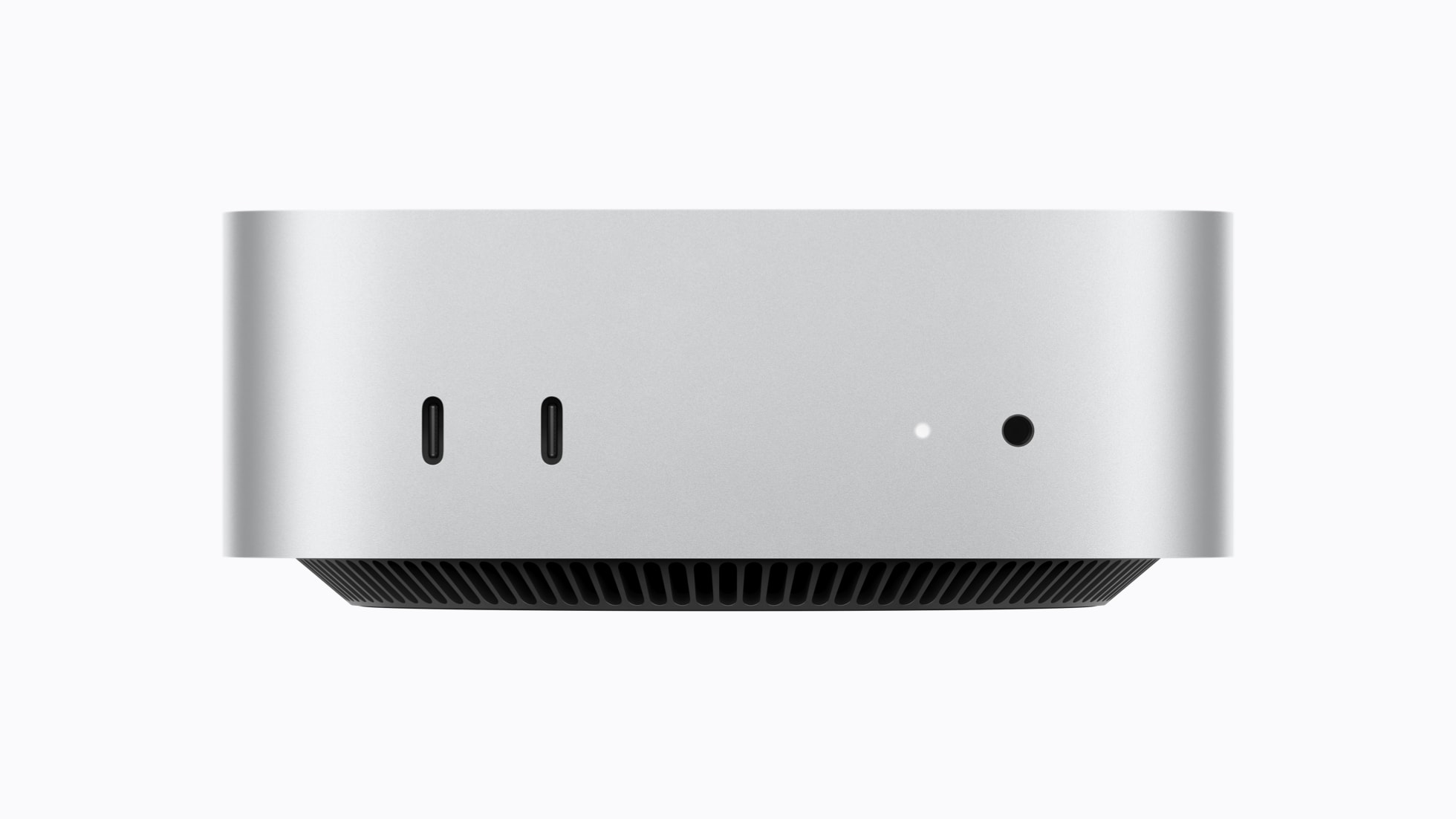
Memory starts at 16GB standard, up from 8GB on the entry M4 mini, and configures up to 32GB. Memory bandwidth is 170GB/s. Both the M6 and M5 Pro ship with Wifi 7, Bluetooth 6, 2.5Gb Ethernet standard with a 10Gb option, two front USB-C ports, a headphone jack, and HDMI. Both run macOS 27.
Who the $899 base M6 covers
For most of what I set up in San Diego homes and small offices, the base $899 M6 with 16GB of memory is plenty, and honestly overkill for a chunk of it.
If you’re running a front desk at a dental office, a boutique, or a small clinic, checking people in, printing labels, running a point-of-sale system, this machine will never break a sweat. Same story for bookkeeping in QuickBooks or Xero, email and calendar management, and general office work in Word, Excel, or Google’s web apps. I’ve set up plenty of M4 minis for exactly this kind of desk, and the M6 is a clear step up at the same starting price the M4 launched near.
For a home office doing email, web browsing, streaming, light photo editing, and video calls, the base configuration is the right call. Don’t let anyone talk you into paying more for headroom you’ll never use.
When 32GB of memory is worth the extra money
Apple charges a premium to bump memory from 16GB to 32GB at checkout, and whether it’s worth it comes down to how many things you keep open at once, not how “powerful” you want to feel.
If you’re the kind of user with 30 browser tabs open, plus Mail, plus Slack or Teams, plus a spreadsheet, all running simultaneously and staying open for days, the extra memory keeps things from slowing down when macOS has to juggle everything in the background. Same goes if you run virtual machines, do any local AI work with tools like Ollama or LM Studio, or work in Adobe Creative Cloud apps regularly rather than occasionally.
If that’s not you, save the money. 16GB handles the vast majority of San Diego small business and home setups I see without a hitch.
M6 or M5 Pro?
The $1,699 M5 Pro model is a different machine aimed at a different job. It steps up to an 18-core CPU, a 20-core GPU, up to 64GB of memory, and 307GB/s of memory bandwidth, nearly double the M6’s. It also gets Thunderbolt 5 instead of the M6’s Thunderbolt 4, which matters if you’re moving huge files to fast external storage regularly.
That $800 premium earns its keep for a specific list of people: video editors working with 4K or 8K footage, photographers managing large RAW libraries in Lightroom or Capture One, anyone running heavy multitasking across professional creative apps, and small businesses starting to experiment with local AI models that need real memory headroom to run well. If none of that describes your day, the M5 Pro is money spent on capability you’ll never touch.
What you’ll need besides the mini itself
The Mac mini doesn’t include a monitor, keyboard, or mouse. You’re bringing your own display, which is actually one of its best features if you already own a decent monitor, since you’re not paying for glass you don’t need. If you’re starting from scratch, budget for those separately, and I’m happy to help you pick a monitor that matches what you’ll be doing on it, whether that’s spreadsheet work or photo editing.
Storage: don’t get stuck at 256GB
The base configuration starts at 256GB of storage, which fills up fast once you factor in macOS itself, your apps, photos, and any local files.
I’d steer almost everyone toward at least 512GB at checkout, especially if you keep a Photos library locally, work with large files, or plan to keep this machine for four or five years like most of my clients do. Storage isn’t upgradeable after purchase on these machines, so this is the one spec worth getting right before you buy rather than living with later.
What happens to your old M4 mini
If you’re sitting on an M4 mini and wondering whether to trade it in, don’t guess at a number. Apple’s trade-in program and its refurbished store both fluctuate, and I’d rather you check Apple’s current trade-in estimate directly than trust a figure that might be stale by the time you read this. If your M4 mini still runs everything you need, there’s no rush to replace it. This announcement doesn’t make it obsolete, it just means the newest model moved past it.
Should you wait?
No. This is the fresh model, not the one about to be replaced. Preorders are open now and it ships September 22, so if you’ve been holding off on a Mac mini purchase waiting for something new, this is that update. There’s no reason to sit on the sidelines for a next version that isn’t coming anytime soon.
Getting it set up right
Buying the right configuration is half the job. The other half is getting your files, apps, and logins moved over cleanly, your printer and network set up, and your old Mac wiped and handled responsibly. I do this on-site across San Diego, whether that’s a single home office or a small business with a handful of machines to migrate at once.
If you want a second opinion on which config fits what you actually do before you spend $899 or $1,699, book a visit at sdmactech.com/get-started or call me at (858) 217-4609, and we’ll figure out the right machine together.
(Featured and in-body images courtesy of Apple)
You must be logged in to post a comment.