Switching from Windows to Mac in San Diego: the complete migration guide
Every November I get calls from people who are about to unwrap a Mac or buy one for the office, and who have spent 15 years on Windows. The worry is always the same: will my files come with me, and will my work software still run?
Most of it moves over fine. A few things need a plan. Here is how I handle the move.
Start with a Mac that fits the job
If you have not bought yet, my holiday Mac buying guide covers what I would buy and what I would skip. Get the right amount of storage for your files. The internal storage cannot be upgraded later, though you can add external storage.
How Migration Assistant works
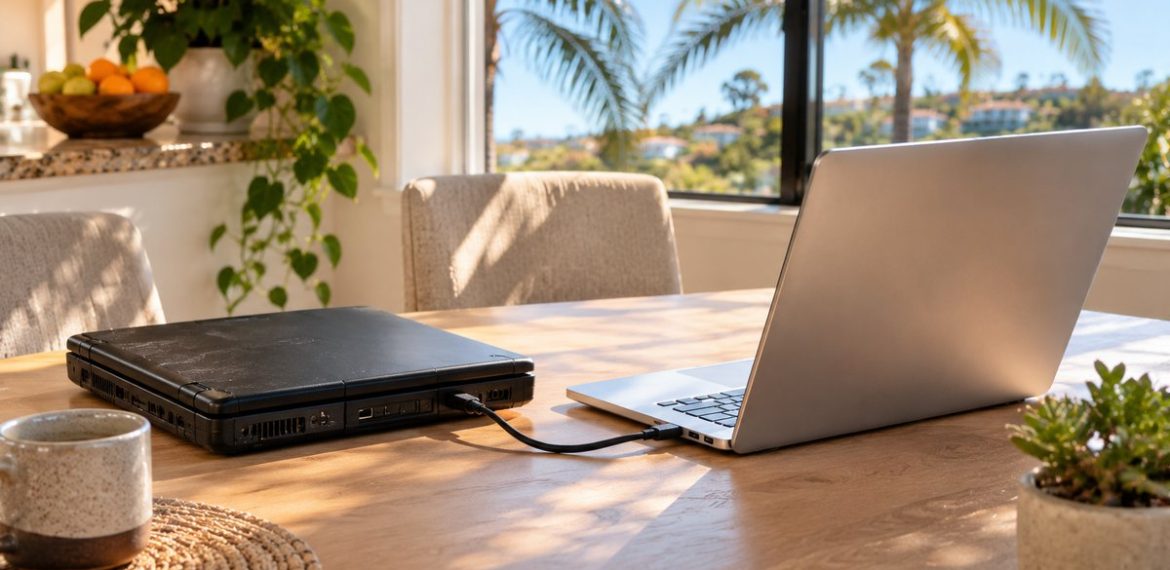
Apple includes a free tool called Migration Assistant on every Mac. For a move from Windows, you download Apple’s Windows Migration Assistant on the PC, open Migration Assistant on the Mac, and choose “From a Windows PC.” The Mac shows a code, you enter it on the PC, and the two machines talk to each other. Apple’s Windows Migration Assistant needs Windows 10 or later. If your PC is older than that, I copy your files to an external drive and move them to the Mac from there.
Apple has you close all apps and temporarily turn off antivirus, firewall, and VPN software on both computers first. Both computers should be near each other with wifi and Bluetooth on. The transfer can take hours for a large PC, so start it in the evening. Your PC is not changed or wiped. Everything is copied, so you keep the original until you are sure.
What moves and what does not
According to Apple, these items transfer:
- Email, contacts, and calendars from Outlook and Windows Mail
- Documents and files in your user folder
- Browser bookmarks and homepage from Chrome, Edge, Firefox, and Internet Explorer
- Music, podcasts, movies, and TV shows
- Known wifi networks and desktop pictures on recent versions of macOS
Photos are different. Apple says you add them to the Photos app yourself, or let Photos search for them. Do not skip this step. People assume photos came along and find out weeks later that they did not.
What does not move is the software itself. Windows programs do not run on a Mac. Migration Assistant brings over your data and leaves the apps behind. Make a list of every program you use daily before you start, and I will tell you which have Mac versions, which have a good replacement, and which are web-based and work in Safari as they are.
Outlook, QuickBooks, and printers
These are the three things that trip people up, so I check them first.
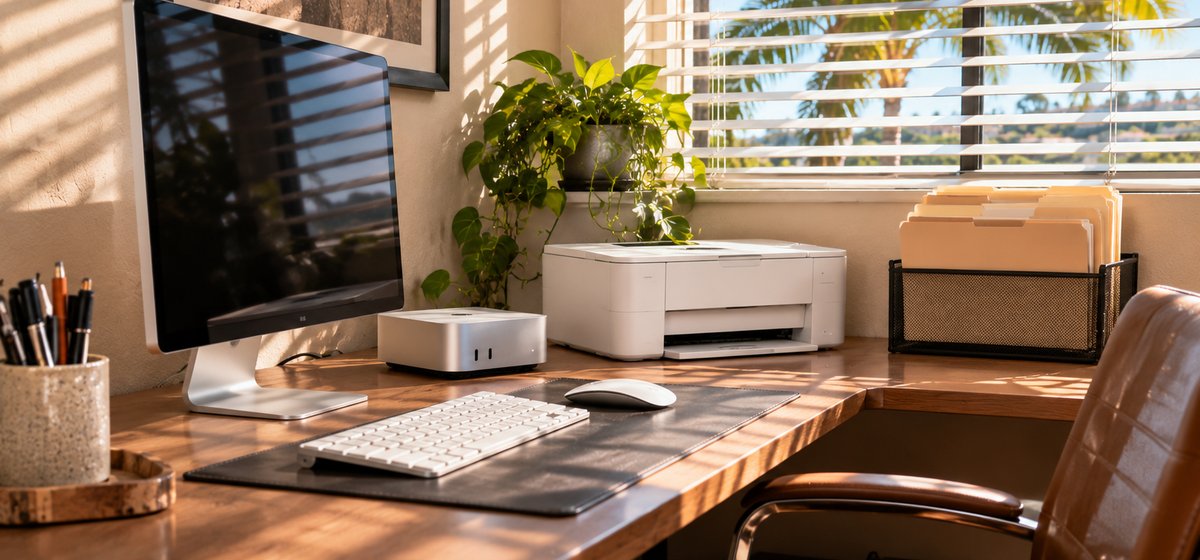
Outlook. Migration Assistant brings your Outlook mail, contacts, and calendar into the Mac’s Mail, Contacts, and Calendar apps. If you want to keep using Outlook itself, Microsoft makes an Outlook for Mac. A PST file, which is the archive file Outlook on Windows uses, can be imported into the legacy Outlook for Mac. I do not promise that the new Outlook imports PST files. I keep the original PST file as a backup either way, and I check that the old mail opens before the old PC leaves. If your mail lives in Microsoft 365, nothing needs to move, because the mail is in the cloud and you sign in on the Mac.
QuickBooks. QuickBooks Desktop for Windows does not run on a Mac. If your books are in QuickBooks Online, you just open it in a browser and nothing changes. If you use the desktop version, talk to your bookkeeper or accountant before you buy. Moving to an online or Mac-compatible version is a business decision, and I do not want you finding that out after the Mac is on the desk. This is the one item where I tell people to wait before switching.
Printers. Most printers made in the last several years work on a Mac through AirPrint with no driver to install. I add the printer, run a test page, and confirm the scanner works too, since scanning is where older printers sometimes fall short. If your printer is too old, a replacement is usually cheaper than a long fight with it.
The things nobody mentions
Passwords saved in Chrome or Edge need to come over into a password manager or Apple’s Passwords app. Keyboard shortcuts use the Command key where Windows uses Control, and that takes a week or two to feel natural. File extensions, right-click, and window management all work a little differently. None of it is hard, but it is where people feel lost on day three.
I also like to set up Time Machine backups on day one, so your new Mac is protected from the first morning.
Let me do the move with you
I do this on site. I sit down at your desk, go through your files and programs, run the transfer, and I stay through the setup. I also set up the Mac the way I describe in my post on new Mac setup in San Diego, so everything is done before you touch the keyboard.
For homes, seniors, and anyone who prefers a patient person at the next chair, take a look at my Apple IT support in San Diego page. Call me at (858) 217-4609 to talk through your PC and your software. A call under 10 minutes is free. You can also book a visit.
You must be logged in to post a comment.