
Sign PDFs with your trackpad or iPhone camera
Printing a document just to sign it, then scanning it back in, is a ritual nobody needs anymore. Your Mac can hold your real signature and drop it onto any PDF in about five seconds.
You set it up once. Open the PDF in Preview and click the markup icon in the toolbar, the one that looks like a pen tip in a circle. In the row of tools that appears, click the signature button, choose Create Signature, and you get three ways to make one:
Trackpad. Sign with your finger directly on the trackpad, then press any key to finish. It feels strange the first few tries, so sign slowly and click Clear to redo it until it looks like you.
Camera. This is the one that gets the best result. Sign your name on a clean white sheet of paper with a dark pen, hold it up to your Mac’s camera, and Preview lifts the signature off the page and cleans up the background. It looks exactly like your pen because it is your pen.
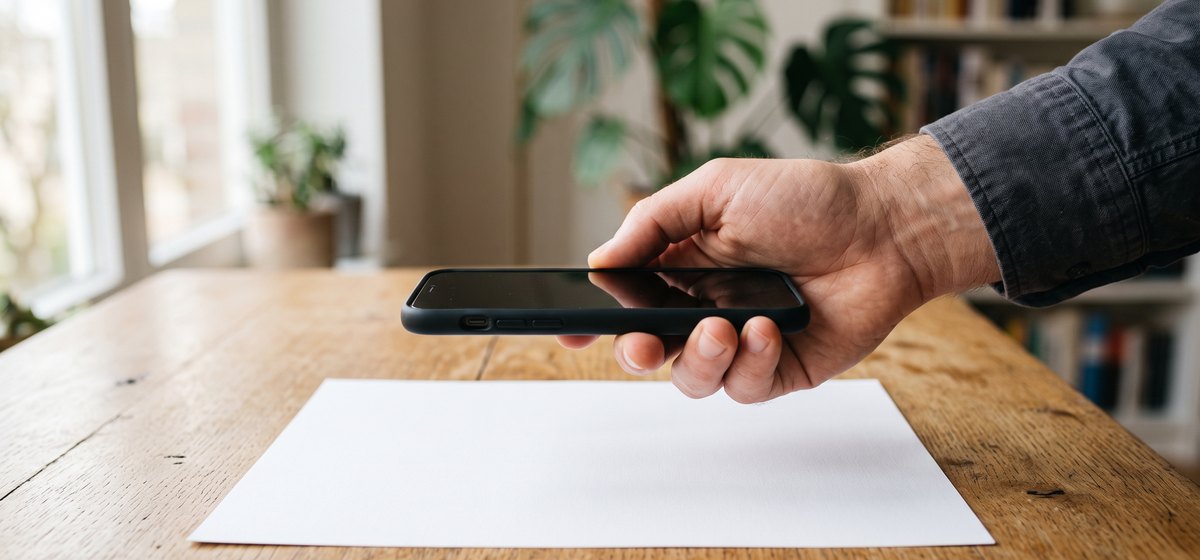
iPhone or iPad. Choose that option and your phone screen turns into a signing pad. Sign with your finger or an Apple Pencil and it appears on the Mac instantly.
Once it is saved, signing anything takes seconds. Open the PDF, click markup, click the signature button, pick your signature, and it drops onto the page. Drag it where it belongs and pull the corners to size it. If the form has blanks, Preview handles those too: click a field and type. Then press Command-S to save.
You can store more than one, which is handy if you also need your initials for those “initial here” boxes, or a second signature for a business name.
A few notes worth knowing. Your signatures ride along with iCloud Keychain, so they follow you to your other Macs, and they show up in Markup on your iPhone too: open a PDF, pick Markup in the share sheet, tap the plus button, then Add Signature. Mail on the Mac has it as well: attach the PDF to a reply, hover over it, click the small button in its corner, and choose Markup to sign without opening Preview at all.
You must be logged in to post a comment.