
Share your wifi password with guests in one tap
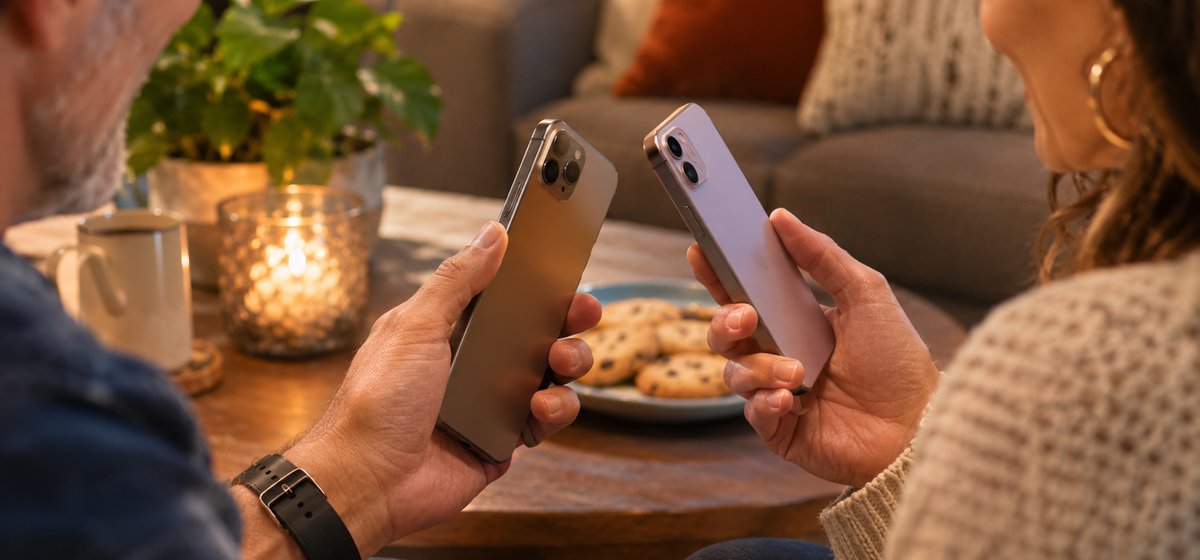
You have guests for the holiday weekend and everyone wants the wifi. Spelling out a 16-character password to six people is no fun. Your iPhone can send it to theirs with one tap.
How to share it
- On your guest’s iPhone or iPad, they open Settings, tap Wi-Fi, and tap your network’s name.
- On your own iPhone, keep the screen unlocked and stay connected to that same wifi network, close to your guest.
- A prompt appears on your phone. You tap Share Password, then tap Done.
Their phone joins the network, and you never said the password aloud.
Make it work every time
Apple lists a few requirements, and this is where it usually breaks:
- Both devices need the latest iOS, iPadOS, or macOS.
- Wi-Fi and Bluetooth must be on for both phones.
- Both of you need to be signed in with your Apple Accounts.
- You both need each other’s Apple Account email or phone number saved in Contacts. This is the one people forget.
- Personal Hotspot must be off on both phones.
- Keep the phones close together.
If the prompt does not appear, restart both phones and try again. If it still does not, have your guest type the password in. Wifi passwords are case sensitive, so a capital letter matters.
For guests with Android phones
This trick works between Apple devices only. For an Android guest, you can show a QR code instead: on your iPhone, open the Passwords app, tap Wi-Fi, tap your network, and choose Show Network QR Code. Your guest scans it with their camera.
For everyone else, a good option is a separate guest network, which keeps visitors off the network your computers and cameras use. If you have an eero system, the eero app can set up a guest network in a few taps. If you would like an eero system in your home, see my eero Pro wifi installation service.
Not working, or not sure what your home network looks like? Call me at (858) 217-4609 or book a visit. A phone call under 10 minutes is free. These steps come from Apple’s support page on sharing your wifi password.
You must be logged in to post a comment.