
Repair or replace? Batteries, AppleCare, and the real math on aging Macs
I get some version of this question almost every week. Someone’s MacBook is running hot, the battery drains by lunch, or the whole thing just feels slower than it used to, and they want to know if it’s worth fixing or buying new.
There’s no single right answer, but there’s a right way to think about it: what’s actually wrong, what it costs to fix, and what that money gets you in a new Mac.
Is it actually the battery, or is it the whole Mac?
A tired battery and a tired Mac feel similar day to day, but they’re very different problems with very different price tags.
Open System Settings, then click Battery, then Battery Health. You’ll see maximum capacity compared to new; anything above 80 percent is still doing its job, and below that, especially with a “service recommended” message, the battery is the real problem, not the Mac. Current macOS versions also show your cycle count right in Battery Health; on older point releases, check About This Mac, then System Report, under Power. Apple rates most MacBook batteries for around 1,000 full charge cycles. A five-year-old Mac with 900 cycles has earned its fading battery honestly. A two-year-old Mac with 900 cycles is a different conversation.
If battery health is fine but the whole machine feels sluggish or the fans spin up doing nothing, that’s not a battery problem. Keep reading.
What Apple actually charges for a battery in 2026
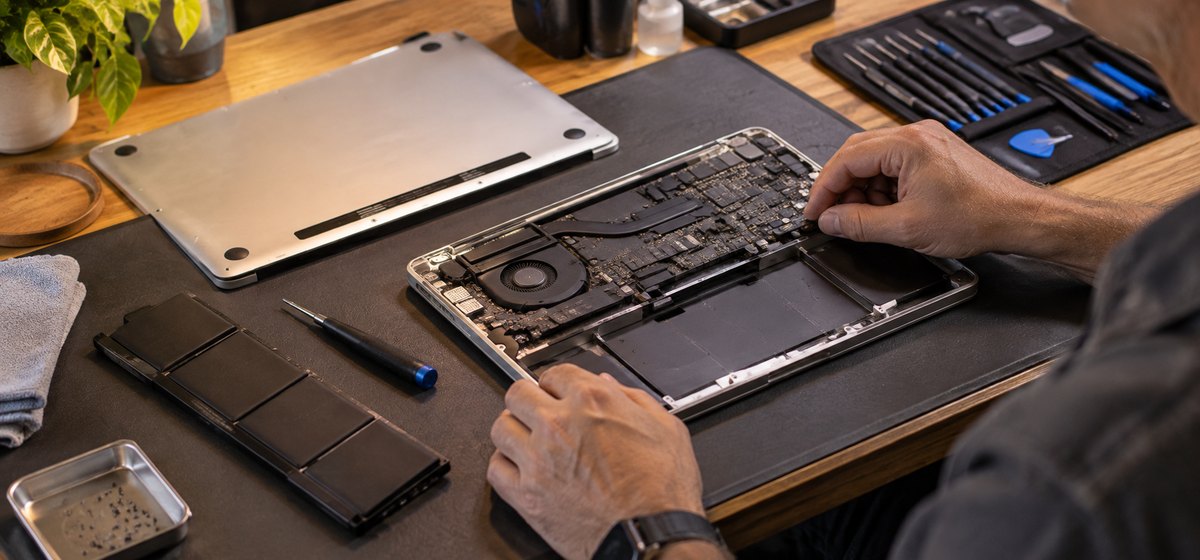
Apple’s current out-of-warranty battery service runs $159 for a 13-inch MacBook Air, around $199 for the 15-inch Air, and $249 flat for MacBook Pro models. With AppleCare+, if the battery has dropped below 80 percent capacity, it’s free.
That’s a good repair on almost any Mac, especially one running Apple silicon. It’s the rest of this article that’s about the harder calls.
The Intel-to-Apple-silicon cliff
macOS 26 Tahoe is the last major macOS release that supports Intel-based Macs, and it barely supports them. Only five Intel models made the cut: the 2019 Mac Pro, the 2019 16-inch MacBook Pro, the 2020 13-inch MacBook Pro with four Thunderbolt 3 ports, the 2020 Intel 13-inch MacBook Air, and the 2020 27-inch iMac. Everything else Intel, including every Intel Mac mini and every older MacBook Air, was already left behind before Tahoe, and the next release, macOS 27, drops Intel entirely: it runs only on Apple silicon Macs, no exceptions.
If you have an Intel Mac, you’re on borrowed time for major updates no matter how well you take care of it, and spending real money on its screen or keyboard buys you a machine already at the end of its runway. If you have an Apple silicon Mac, an M1 through M5 machine, you’re in much better shape: macOS 27 runs on every Apple silicon Mac ever shipped, back to the first M1 machines from 2020, so there’s no cliff in sight yet.
Why an unsupported macOS is a real security problem
Once a Mac stops getting major macOS updates, it eventually stops getting security patches too. Researchers find vulnerabilities every year in the parts of macOS that handle your browser, email, and network connections, and Apple patches those in the current macOS and usually the version or two behind it. Once your version ages out of that window, the holes stay open, and even your browser eventually stops updating, since Safari requires a current-ish macOS to work at all.
For a home user, that’s more exposure to phishing and malicious downloads. For a small business, it’s worse: an unsupported Mac on your network is a soft spot, and if you carry cyber insurance, an unpatched machine handling client data is exactly the kind of thing that complicates a claim. It’s one of the strongest arguments for replacing an aging Intel Mac rather than pouring money into keeping it alive.
When “it’s just slow” is fixable, and when it isn’t
Not every slow Mac needs replacing. A Mac that’s run for years without a clean install often has piles of login items, browser extensions, and background junk slowing it down. A clean reinstall of macOS, or just pruning the list in System Settings, under General, then Login Items & Extensions, fixes a surprising number of “my Mac got slow” complaints. Free space matters too, though not the way the cleanup utilities claim: a nearly full drive causes slowdowns, crashes, and worse, so I like to see at least 50GB free at all times; an external drive or a cleanup gets you there without spending a dime on hardware.
But some slowness is architectural, and no cleaning fixes it. Any Mac with only 8GB of RAM, Apple’s base configuration for years, struggles the moment you have a browser with a dozen tabs open alongside Mail or Photos, and that RAM isn’t upgradeable after the fact. Older iMacs with spinning hard drives or Fusion Drives, common through around 2019 to 2020, are dramatically slower than anything with an SSD; the file system in modern macOS was built for SSDs, and running it from a spinning drive is painfully slow no matter how clean the system is. If your slow Mac has 8GB of RAM or a spinning drive, that’s a hardware ceiling, and the only way past it is a new Mac.
What common repairs actually cost against a new Mac
A new 13-inch MacBook Air starts at $1,099 as of this writing, with the 15-inch starting at $1,299. Compare that to typical repairs:
- Screen replacement: roughly $450 to $650 on a MacBook Air, $700 or more on a MacBook Pro
- Keyboard or top case replacement: roughly $200 to $500, more with trackpad and battery bundled in
- Liquid damage: a few hundred dollars for a light spill up to $1,000 or more for logic board damage, sometimes just quoted as a full replacement
- Storage: on any Mac from around 2016 forward, the SSD is soldered to the logic board, so a storage problem is usually an expensive logic board problem
A $250 keyboard fix on a three-year-old Apple silicon Mac is an easy yes. A $700 screen on an eight-year-old Intel Mac already losing OS support is a much harder sell.
Does AppleCare+ pay for itself?
AppleCare+ currently runs $7.99 a month for the 13-inch MacBook Air, $8.99 for the 15-inch, $10.99 for the 14-inch MacBook Pro, and $15.99 for the 16-inch Pro, roughly $290 to $575 over three years.
It pays for itself the moment you have one accidental damage claim, since it caps your cost per incident well below retail pricing and covers battery service below 80 percent capacity free. If you travel with your Mac, or have kids or pets around it, it’s worth it. If it lives quietly on a desk at home, you’re more likely to pay more in premiums than you’d ever pay in repairs. It’s a bet on your own habits, not on the Mac.
Apple Store, Self Service Repair, or an independent shop
Apple Store gives you certified technicians and genuine parts at full retail pricing. Apple’s Self Service Repair program lets experienced people rent Apple’s tools and buy genuine parts for select repairs, useful for something straightforward like a battery. Independent shops typically run 30 to 50 percent less than Apple and often turn it around faster. For most people, that’s the sweet spot: real savings without the DIY risk. I can point you to who I trust locally, or diagnose it myself and tell you which route fits your repair.
What your old Mac is actually worth
Trade-in value on an old Intel Mac is usually more modest than people expect, often well under $300 once you factor in real-world condition, battery health, and cosmetic wear. It’s still worth checking Apple’s trade-in estimate before deciding, since it takes two minutes and the number goes straight toward a new machine.
The simple version: a decision table
- Apple silicon Mac, under 5 years old: repair it. The hardware has years of support left, and almost any repair is cheaper than replacing a machine that’s still current.
- Apple silicon Mac, 5 years or older: repair if the fix is under roughly 20 percent of a new MacBook Air’s price. Replace if it’s more.
- Intel Mac of any age: replace, unless the fix is genuinely minor, under about 20 percent of a new Mac’s price, and you only need it for another year or two.
What to do with the old Mac
If it’s in decent shape, it can become a good hand-me-down for a kid, a parent, or a second machine for light use, once it’s off your account. If you’d rather not keep it, trading it in through Apple or a reputable buyback service turns it into credit toward the new one. Either way, sign out of iCloud first, which also turns off Find My so the next owner doesn’t hit a lock they can’t get past, then do a full erase through macOS Recovery so none of your files or logins travel with it. Once it’s erased, the Mac starts up in Setup Assistant like a brand-new machine, ready for whoever gets it next. If it’s too old or damaged to be useful to anyone, recycle it responsibly and keep the battery and materials out of a landfill.
Get an honest read before you spend anything
You don’t have to guess at any of this. I come to your home or office in San Diego, check the battery health and cycle count, run a real diagnosis on what’s actually slow or broken, and give you a straight repair-or-replace call with real numbers, not a sales pitch either direction. If replacing is the right move, I’ll help you pick the new Mac and handle setup and migration so nothing gets lost in the switch.
Book a visit or call me directly at (858) 217-4609 and we’ll figure out what your Mac actually needs.
You must be logged in to post a comment.