Keep Your Ringer Quiet and Your Alarms Loud in iOS 27
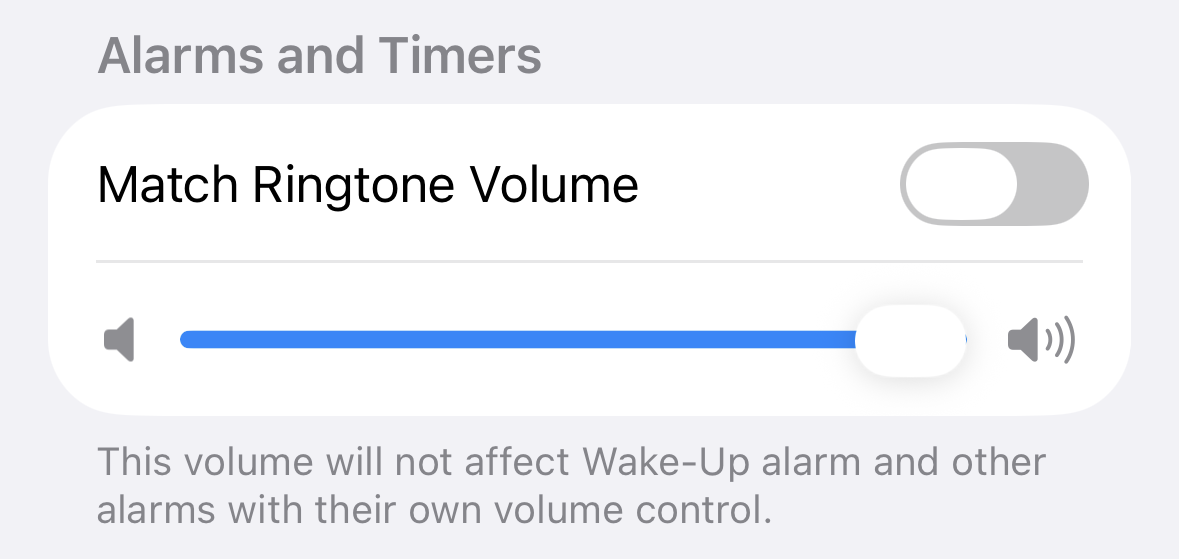
Want a quiet ringtone without making your kitchen timer easy to miss? In iOS 27, you can set alarm and timer volume separately from ringtone volume. By default, they’re still linked, so you’ll need to change a setting. Go to Settings > Sounds & Haptics, find Alarms and Timers, and turn off Match Ringtone Volume. Drag the slider below it to your preferred volume, then adjust the Ringtone slider for incoming calls. Alarms and timers share their own volume setting, so you can keep them loud without making every phone call announce itself across the room. Once you’ve adjusted the sliders, set a short timer in the Clock app to check that the volume suits your surroundings.
This is exactly the kind of small iPhone adjustment I handle by the dozen on in-home visits across San Diego. Keep a list of yours and book a visit, or call (858) 217-4609.
Featured image by iStock.com/Olga Demina
(In-body screenshot courtesy of the TidBITS Content Network)
You must be logged in to post a comment.