Cox, AT&T or Spectrum gateway vs eero: what San Diego homes actually need
When your internet provider installs service, they hand you a gateway: one box that is a modem and a wifi router in the same case. It works. In a lot of San Diego homes it works well enough in the room it sits in and poorly everywhere else.
People ask me whether they need an eero system or whether the box is enough. The answer depends on your house and on a few details of how your provider sets things up.
What the gateway does
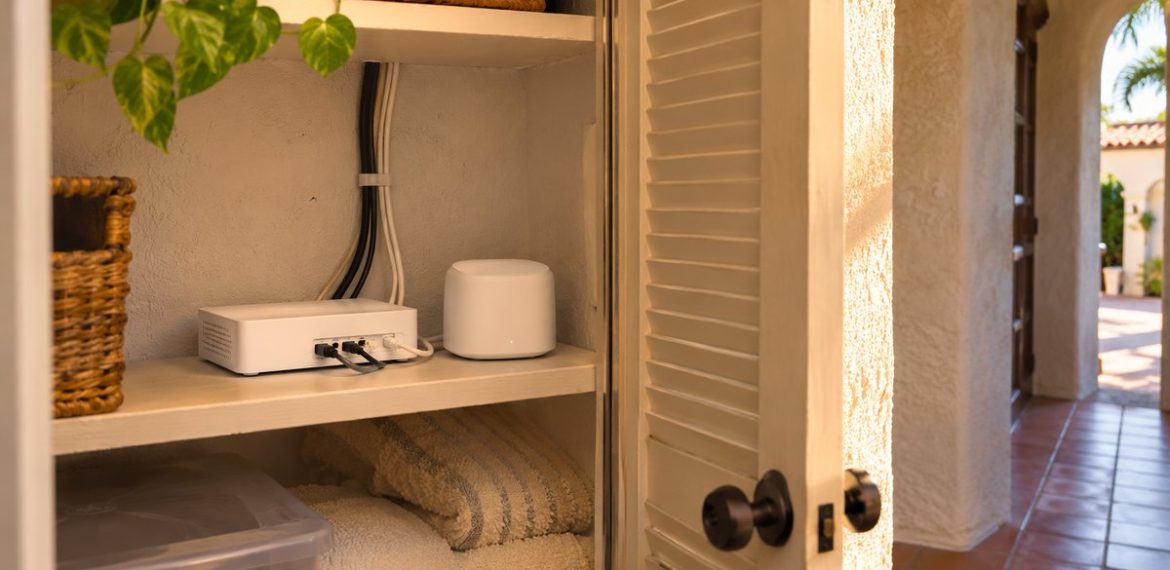
Cox, AT&T, and Spectrum each supply their own hardware, and it changes from time to time. Some plans come with one all-in-one gateway and others with a separate modem and router. Either way, the equipment connects to the provider’s network, then hands out wifi and gives every device in your home an address.
The wifi part is the weak spot. The providers want a box that is cheap to buy in bulk and simple to ship, so the antennas are modest and there is one of them. It sits wherever the cable enters the house. If you have stucco walls, two stories, or a long floor plan, one box in one corner will leave dead zones. I explain why in mesh wifi explained.

Bridge mode and double NAT
eero works best as the only router on your network. The gateway still brings the internet in, but its router and wifi should step aside, and I do that one of two ways.
Bridge mode. The gateway turns off its own routing and passes the connection straight to the eero. Many gateways support this, though the setting is often buried, and sometimes it only works through the provider’s app or website. Some boxes call it IP passthrough instead, and it behaves a little differently. I have run into this with AT&T fiber gateways in particular.
Double NAT. If you plug an eero into a gateway that is still doing its own routing, you end up with two routers stacked on top of each other. This is called double NAT. It can work, but it causes problems with gaming, calls, and port forwarding. It is a common mistake I find when I look at a DIY eero setup.
The usual fix is to put the gateway in bridge mode or passthrough, so that only the eero is routing. With one router in charge, the network is easier to troubleshoot.
When the provider’s box has to stay
You cannot always remove the box. Some cases where it stays:
- Fiber service. Fiber needs a device at the house that converts the fiber signal to something your network can use. Whether that is a separate piece or built into the gateway depends on your provider and plan, so I check the equipment before I promise a layout.
- Home phone or TV service through the box. If a landline or set-top service runs through the gateway, it has to stay in place and keep doing its job.
- Provider-managed equipment. Some plans require their gateway to be connected, and some will not give support if it is replaced.
In all of these, the gateway stays plugged in and the eero sits behind it. You keep the provider’s box and replace its wifi with a better one.
Do you need an eero?
My answer depends on the house:
- A small condo or apartment with open rooms: the gateway may be all you need.
- A one-story home with no dead rooms: the gateway is probably fine, but check how it holds up on video calls.
- Two stories, stucco, a long floor plan, a hillside lot, or a detached office or garage: an eero system is worth it.
- A home office where you depend on your connection for work: get the eero.
An eero system also gives you the app, which shows every device on your network and lets you pause the internet for a kid’s phone at dinner. I wrote about wifi 7 and whether your home is ready for it if you are curious.
Let me look at your box
I am a certified eero Pro installer, and part of every job is working out what your provider’s equipment will allow. I check the model, set bridge mode if it applies, and test for double NAT before I leave. My eero Pro wifi installation service covers the full job.
Call me at (858) 217-4609 and tell me which provider you have. A call under 10 minutes is free. Or book a visit and I will come take a look.
You must be logged in to post a comment.