
Choose Default Apps for File Types in iOS 26 and iPadOS 26
SDMacTech note: Many iPhone and iPad features are powerful but easy to miss. If these steps do not look the same on your device, it may be due to your iOS/iPadOS version or device model.
At SDMacTech, I help San Diego Mac, iPhone, and iPad users make technology less frustrating and more reliable.
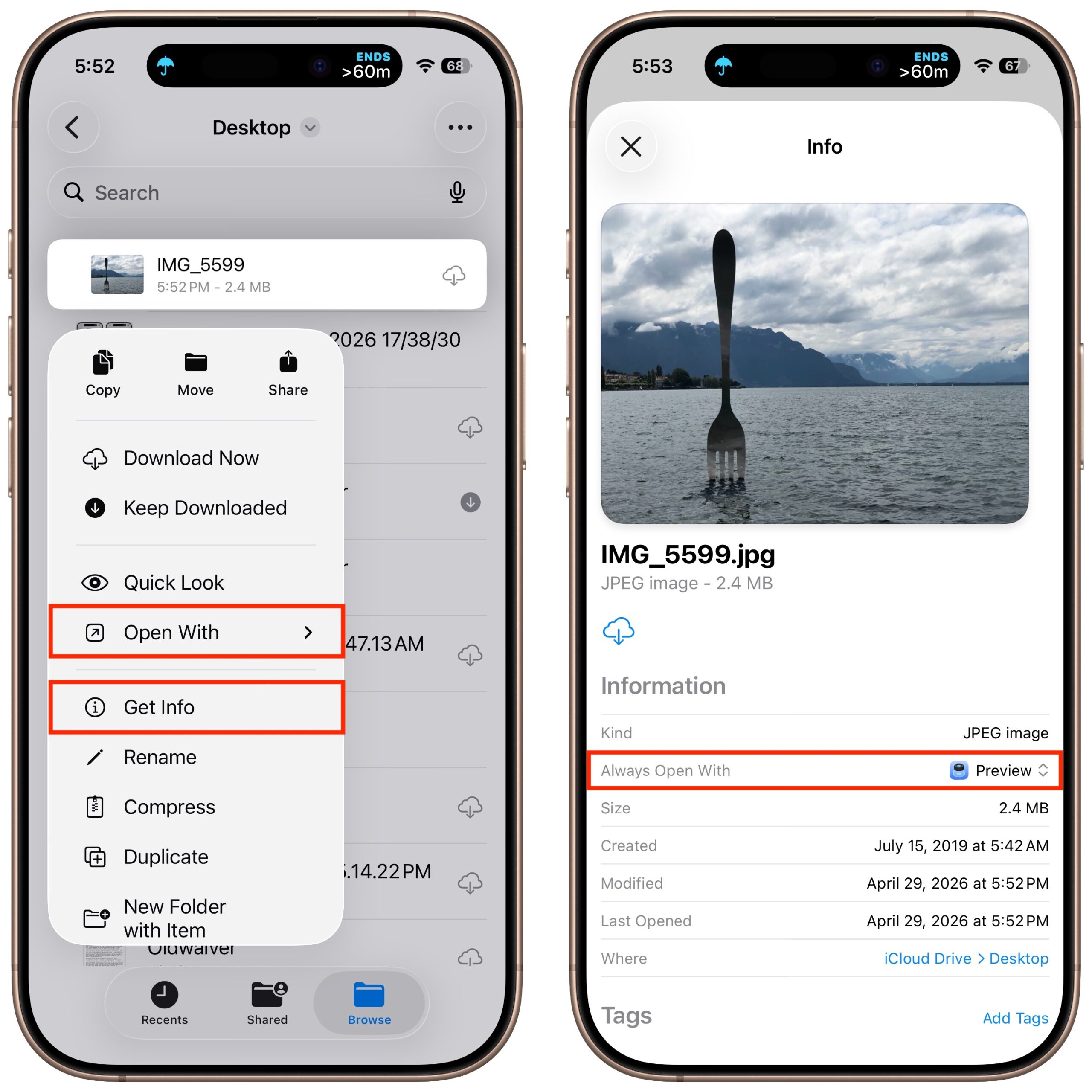
On the Mac, every file type opens in a particular app by default, but it’s easy to open a PDF, image, or text file in a different app. In the Finder’s Get Info window, you can also reset the default app so that, for example, JPEGs open in Photoshop or Affinity instead of Preview. That’s all now possible in iOS 26 and iPadOS 26 as well. In the Files app on an iPhone or iPad, touch and hold a file to bring up a menu. Tap Open With, then select an app to open the file once in a different app without changing the default. To reset the default app for that file type, tap Get Info, then select an app from the Always Open With list.
(Featured image based on an original by iStock.com/Tippapatt)
You must be logged in to post a comment.