Tame Your Bluetooth Jungle: How to Rename Confusing Devices on iPhone, iPad, or Mac
Ever opened your iPhone or Mac’s Bluetooth settings and felt like you were reading a foreign language? Names like DX01Gu, ATUMTEK, or the mysterious MY-CAR don’t exactly make it easy to tell your AirPods from your car stereo. Good news: you can clean up that chaotic list by renaming many of your Bluetooth devices. Making everyday connections smoother and far less confusing.
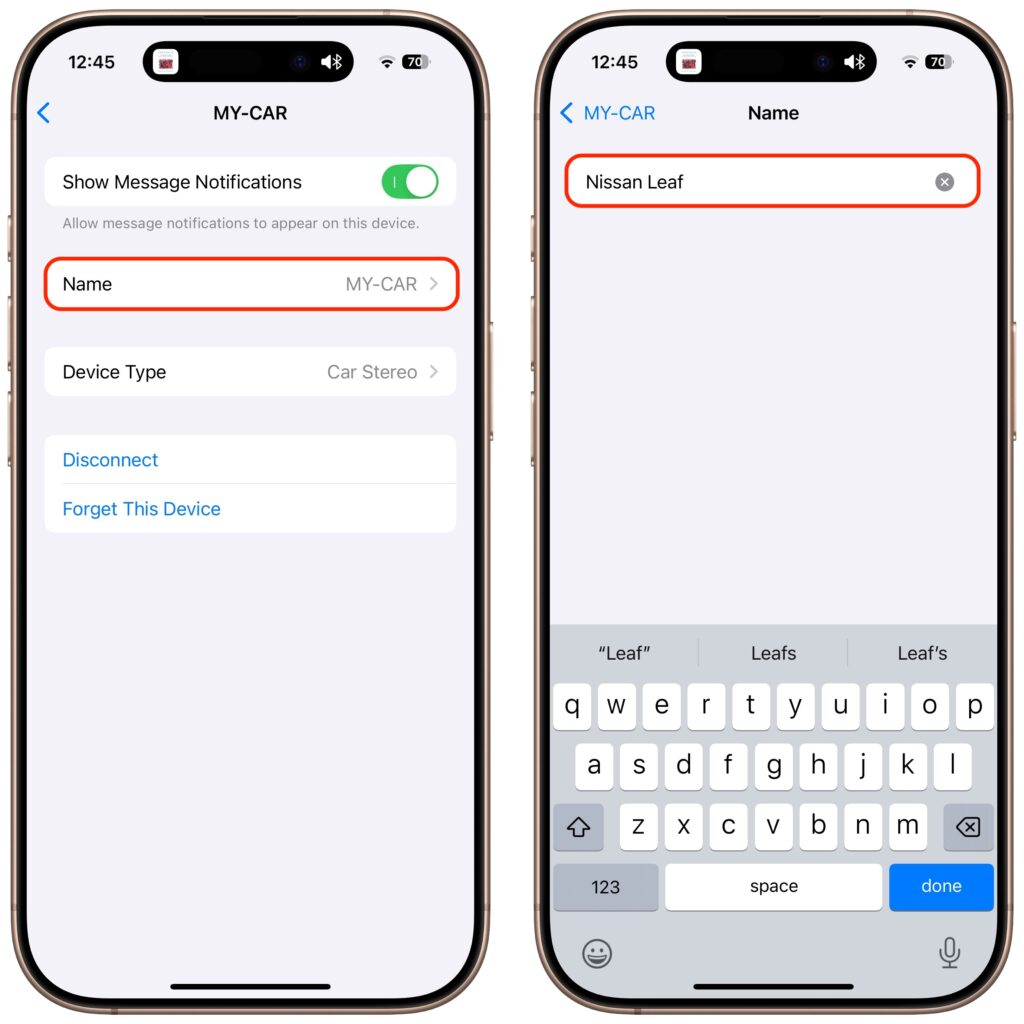
On your iPhone or iPad, just head to Settings > Bluetooth. Once connected to the device you want to rename, tap the blue ⓘ icon next to its name. If renaming is supported, you’ll see a Name field where you can enter something helpful like “Mom’s Car,” “Desk Speaker,” or “Finley’s Headphones.”
You’ll also notice a Device Type menu on the same screen. Options include Headphone, Speaker, Car Stereo, Hearing Aid, and Other. Why bother choosing the right type? Because Apple uses this info, especially for headphones, to monitor audio levels and alert you if your listening volume could be harmful over time.
On the Mac, this feature is more limited, but if you rename the device on your iPhone or iPad, the Mac usually picks up that updated name automatically via iCloud.
Your Bluetooth settings shouldn’t be a guessing game. Rename and organize for a smarter, safer Apple experience!
(Featured image based on originals by iStock.com/Pantherius and iStock.com/Meepian Graphic)
You must be logged in to post a comment.