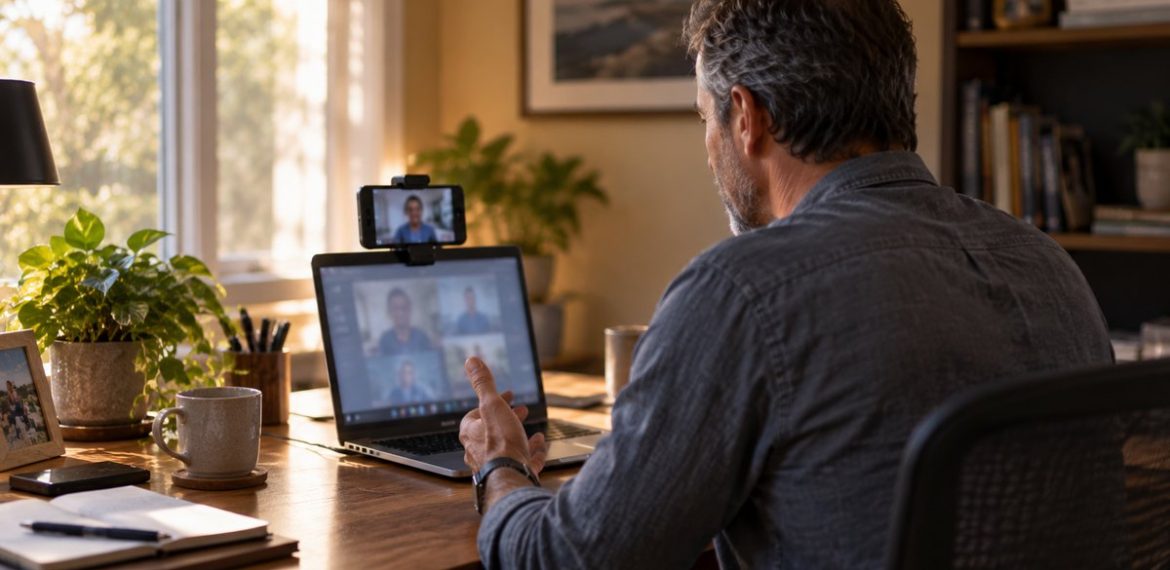
Turn your iPhone into a Mac webcam with Continuity Camera
The camera built into your Mac is fine. The camera in your iPhone is dramatically better. Continuity Camera lets you use the good one for video calls, and it takes no setup at all. Any iPhone from the XR on can do it; some of the effects want a newer model.
Put your iPhone near your Mac, both signed into the same Apple Account with Wi-Fi and Bluetooth on, and mount the phone with its rear cameras facing you. Then open FaceTime, Zoom, Teams, or whatever you use, and pick your iPhone from the camera list. In FaceTime it is under Video in the menu bar. In Zoom and Teams it shows up in the normal camera dropdown as your iPhone. The phone locks itself and shows a “Connected” screen, so you cannot accidentally use it mid-call.
Three features come along for the ride. While your camera is live, click the green video icon in the Mac’s menu bar and the controls are at the bottom of that panel. They are no longer in Control Center, so ignore older instructions pointing you there:
Center Stage keeps you in frame automatically as you move around.
Portrait blurs the background so your kitchen is not the star of the meeting. Click the small arrow beside it for a slider that sets how much blur.
Desk View uses the ultra wide lens to show what is on your desk in a second window, which is genuinely useful when you are showing someone a document, a part, or a sketch.
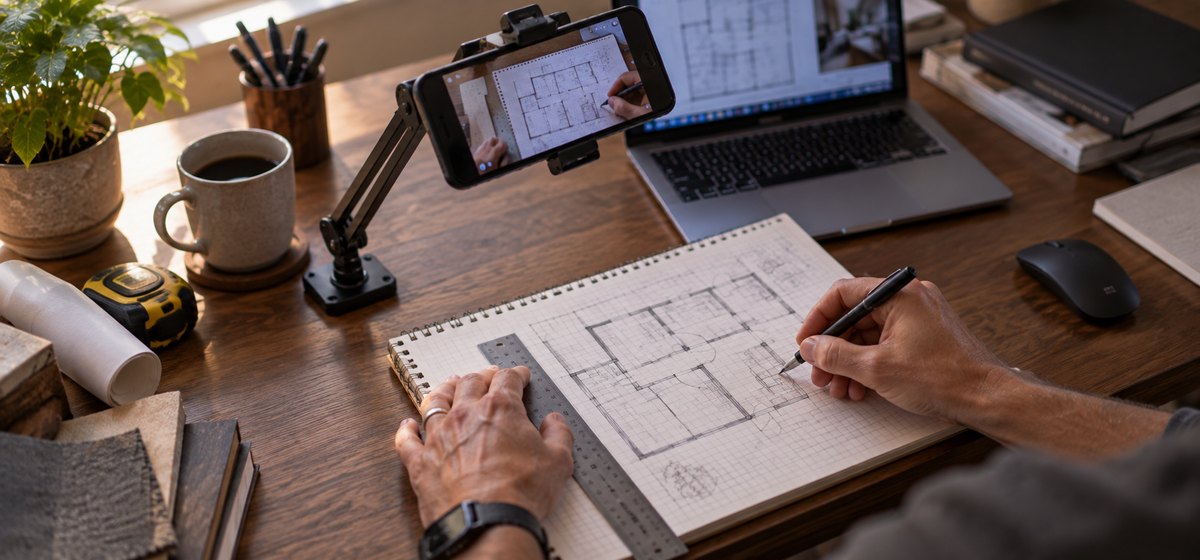
You need a way to hold the phone. A cheap clip-on mount that hangs the phone over the top edge of your display is under twenty dollars and does the job. Belkin makes a MagSafe one that snaps on and off cleanly.
Two practical notes. The phone charges only if you plug it in, so on a long call use a cable. And if your iPhone does not show up in the camera list, quit and reopen the app, since most video apps only scan for cameras at launch.
You must be logged in to post a comment.