Be Careful When Offloading iPhone Apps
SDMacTech note: Many iPhone and iPad features are powerful but easy to miss. If these steps do not look the same on your device, it may be due to your iOS/iPadOS version or device model.
At SDMacTech, I help San Diego Mac, iPhone, and iPad users make technology less frustrating and more reliable.
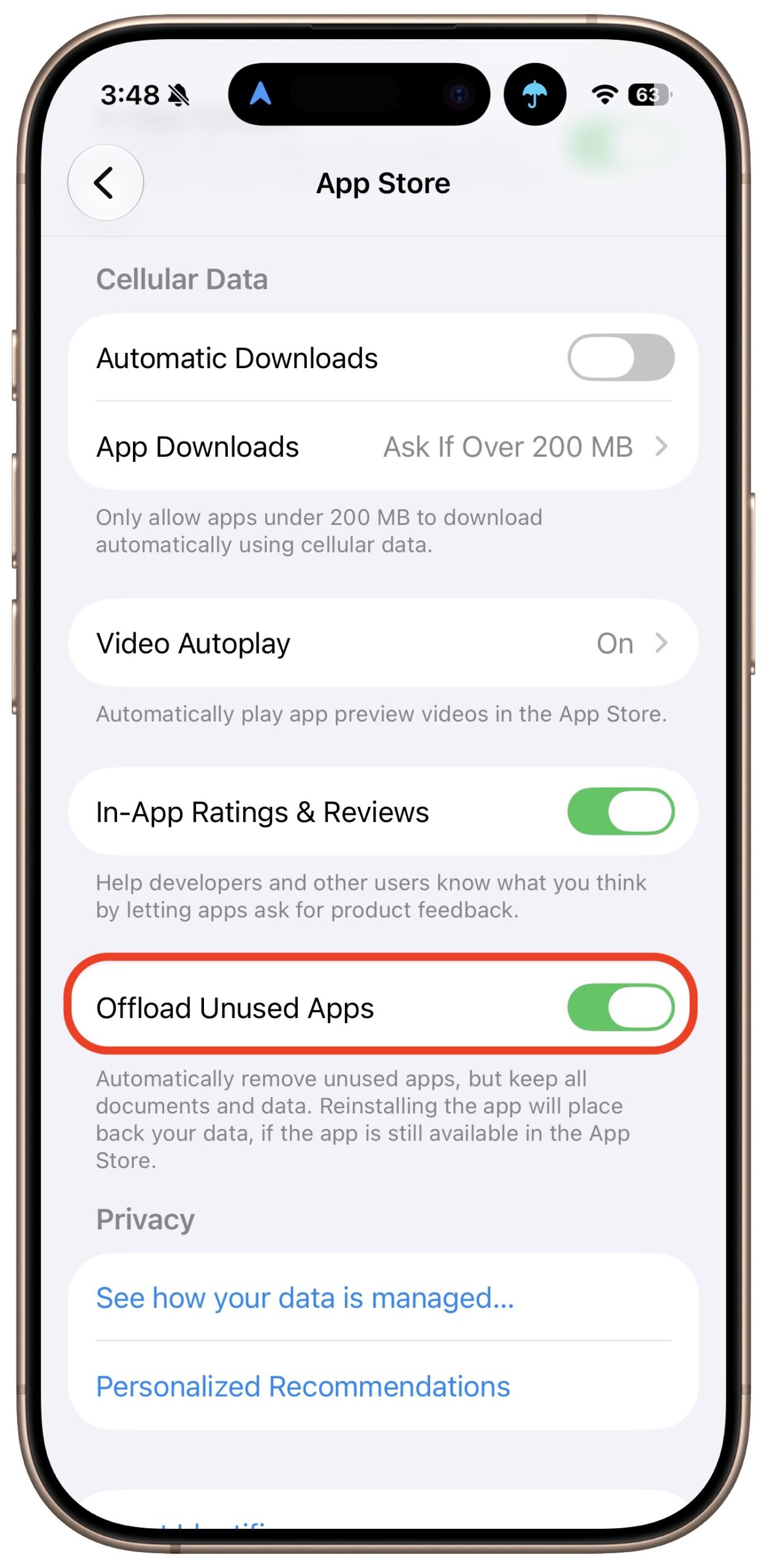
Automatic offloading of seldom-used apps can be a good strategy for recovering space on an iPhone whose storage is almost full, and iOS can do this for you in Settings > Apps > App Store > Offload Unused Apps. When you open an app that was offloaded, iOS will re-download it from the App Store so you can use it—assuming you have Internet access. But what if you have little or no connectivity when you need an offloaded app? For instance, if you have a New York State Parks Empire Pass, you might find yourself unable to use it if the necessary NY State Parks Explorer app has been offloaded and connectivity is weak at the park. I can also imagine app offloading causing problems if you need to use a local transit app after an international flight but haven’t yet arranged local cellular service. If you’re concerned about this possibility, disable Offload Unused Apps and make sure to download any that have been offloaded already.
(Featured image generated by Adam Engst with ChatGPT)
You must be logged in to post a comment.