
WhatCable Reports on Your USB-C Cables
SDMacTech note: I selected this because it is practical, client-friendly Apple advice. If you would like help applying it to your own setup, SDMacTech can walk you through it.
At SDMacTech, I help San Diego Mac, iPhone, and iPad users make technology less frustrating and more reliable.
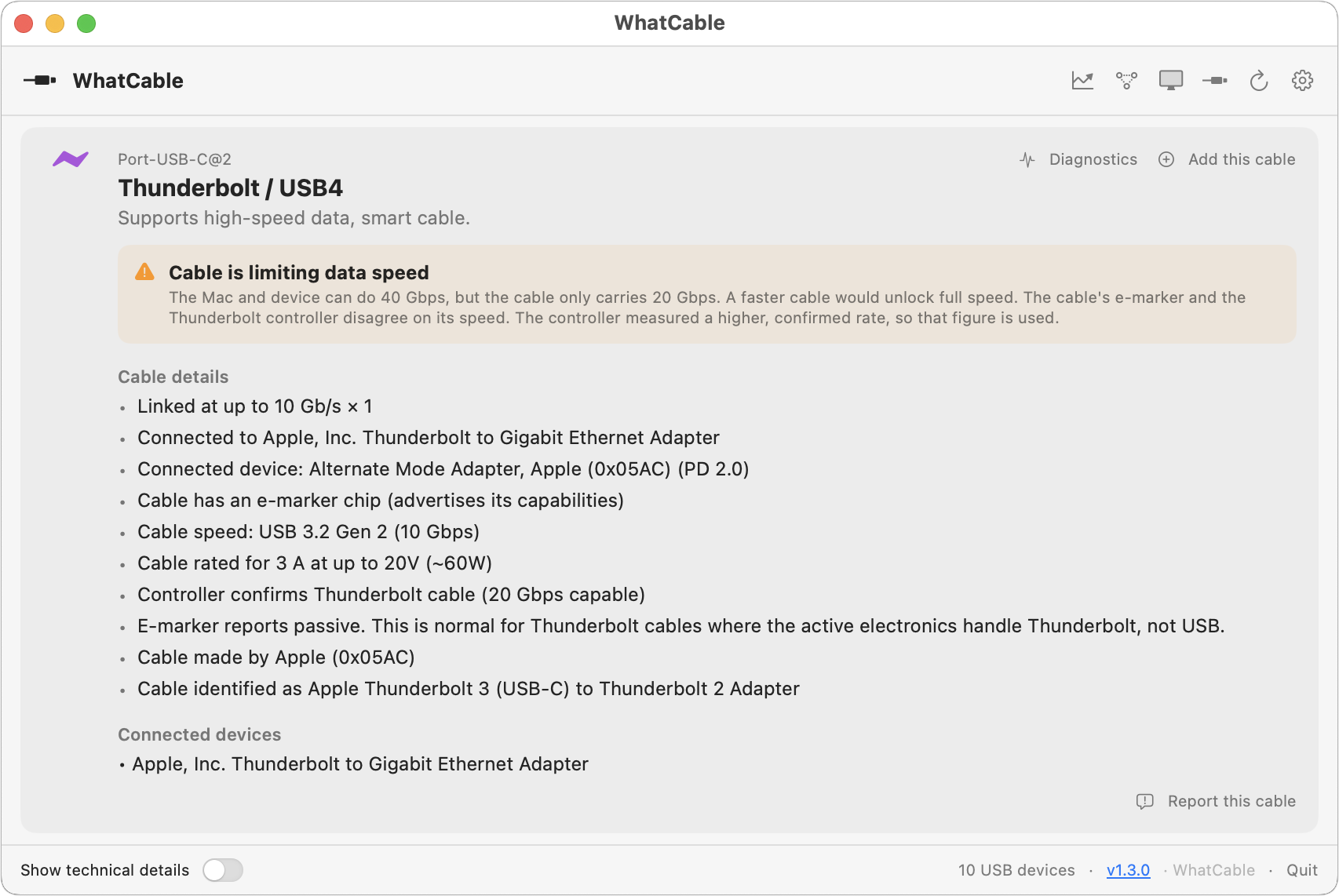
Everyone ends up with a collection of random USB-C cables that arrived with devices, were purchased while traveling, or were left by visitors. But you can’t look at a cable to determine its data speed, how much power it can carry, or whether it’s hampering display quality. You could buy a hardware tester, but for most people, the free WhatCable is all you need. Just launch it and plug in a cable to learn what the cable can do and whether it might be causing performance or charging problems. If you need even more information, the £9.99 WhatCable Pro lets you name individual cables, troubleshoot flaky cables, and see what each port, cable, dock, adapter, and device supports and what was actually negotiated.
(Featured image by iStock.com/monticelllo)
You must be logged in to post a comment.