SDMacTech note: Security advice is most useful when it becomes a habit. If you are unsure whether this applies to your Mac, iPhone, iPad, router, or home office setup, we can help you check it safely. Moreover, we can explain the options in plain English.
Securing your home network might seem uninteresting or unimportant. After all, who would bother to target you? The answer is that criminal hackers are interested in your router for a range of disturbing purposes. These include attacks on your employer if you connect to a corporate network. It’s time to get serious about home network security, especially in light of recent news regarding hacking activities by the Russian military.
In April 2026, the U.S. Department of Justice announced Operation Masquerade, which disrupted a campaign by a hacking unit of Russia’s GRU that compromised thousands of home and small-office routers. The attackers exploited known vulnerabilities in TP-Link routers to hijack DNS settings, redirecting victims to fake web pages that harvested passwords, authentication tokens, emails, and other sensitive information.
The attack was opportunistic: the GRU cast a wide net, compromising routers indiscriminately and then filtering for targets of intelligence value. While your data may not be of interest to Russian intelligence, the same vulnerabilities can be exploited by criminal hackers seeking financial data, credentials for identity theft, or devices to conscript into botnets.
Unlike corporate networks with dedicated IT staff, home routers tend to be installed once and forgotten, sometimes for a decade or more. That old router your AV installer set up with a default password has become a security liability for you, your employer, and the world. Here are actions you can take to fix that, in rough order of importance.
Replace Unsupported Routers
Routers can last many years, but manufacturers eventually stop releasing firmware updates. Once that happens, known vulnerabilities go unpatched, and the router becomes ripe for attack. Check your manufacturer’s end-of-life lists (easily found with a search) to see if your model is still supported. If it’s not receiving security updates, replace it regardless of how well it still works.
When shopping for a replacement, look for routers with automatic firmware updates from a well-known manufacturer with a track record of long-term security support, such as Asus, Eero, Google Nest, Netgear, or Ubiquiti. Avoid bargain-basement devices from unknown manufacturers. Any initial savings aren’t worth the security risk.
Keep Firmware Updated
Router firmware updates patch security vulnerabilities, and the GRU attack exploited a known vulnerability that had an available fix. Enable automatic firmware updates if your router supports them, many modern routers do. If yours doesn’t support automatic updates, set a monthly reminder to check manually. Because new vulnerabilities are discovered regularly, keeping a router secure is an ongoing process, not a one-time task.
Change Default Passwords
Every router ships with default administrator credentials, often printed on a sticker on the device itself. These defaults are widely known and easily found online. Change the admin password immediately after setup to something strong and unique. Also, store it in your password manager.
Similarly, change the default Wi-Fi network name (SSID) and password. Use WPA3 for wireless traffic encryption if available. Most modern routers support compatibility mode that lets older devices connect, while newer ones benefit from stronger security. Never use WEP or leave your network open.
Turn Off Remote Management
Many routers offer a remote login option that allows access to the administrative interface from elsewhere on the Internet (rather than within the router’s own network). Unless you specifically need this capability, deactivate it to reduce your exposure to external attacks. This setting is different from the app-based management provided by some modern routers, which use a secure account and an outbound connection initiated by the router to enable remote access. App-based management is safe as long as your account password is strong, unique, and protected with two-factor authentication.
Check DNS Settings
As seen in the recent attacks targeting some TP-Link routers, attackers who gain access often change DNS servers to redirect you to malicious websites without your knowledge. Verify that your router’s DNS settings are either obtained automatically from your ISP or point to a reputable service such as Cloudflare (1.1.1.1), Google (8.8.8.8), or Quad9 (9.9.9.9). Unfamiliar IP addresses in these settings are a red flag that your router may have been compromised.
Optional Security Improvements
If you ensure you are using a router that’s still receiving security updates, are installing those updates, and have changed the default admin and Wi-Fi passwords, you’ve achieved an entirely acceptable level of security. With a little more time and effort, you can increase security further:
- Disable WPS (Wi-Fi Protected Setup): If your router supports this push-button pairing feature, turn it off to protect against known vulnerabilities that haven’t been patched for over a decade.
- Segment your network: If you have Internet of Things (IoT) devices, such as cameras, smart TVs, or smart home gear, consider creating a separate network for them. If one is compromised, network separation prevents it from accessing your computers or phones. However, some devices need to be set up or controlled by an app on the same network, so you may need to keep such devices on your main network.
- Consider your ISP gateway: Many ISPs provide gateways that combine the modem and router hardware. If you use an ISP-provided router, make sure you can control the necessary security settings. If you prefer to use your own router, make sure to turn off its routing (switch to “bridge mode”) and Wi-Fi features to avoid creating another entry point to your network.
- Monitor your network: Periodically review which devices are connected to your network if your router’s admin interface or companion app makes that possible. Unfamiliar devices could indicate unauthorized access (though it’s more likely you didn’t realize some device connects to Wi-Fi because they seldom identify themselves well).
- Back up your network settings: To simplify reconfiguring your router or setting up a new one, create a backup of key settings. It could be as simple as a set of screenshots.
Home network security isn’t complicated, but it does require some thought at setup and occasional attention. If you’d like help with your network or a pointer to the routers we currently recommend, get in touch with us at SDMacTech. At SDMacTech, we help San Diego Mac, iPhone, and iPad users make technology less frustrating and more reliable.
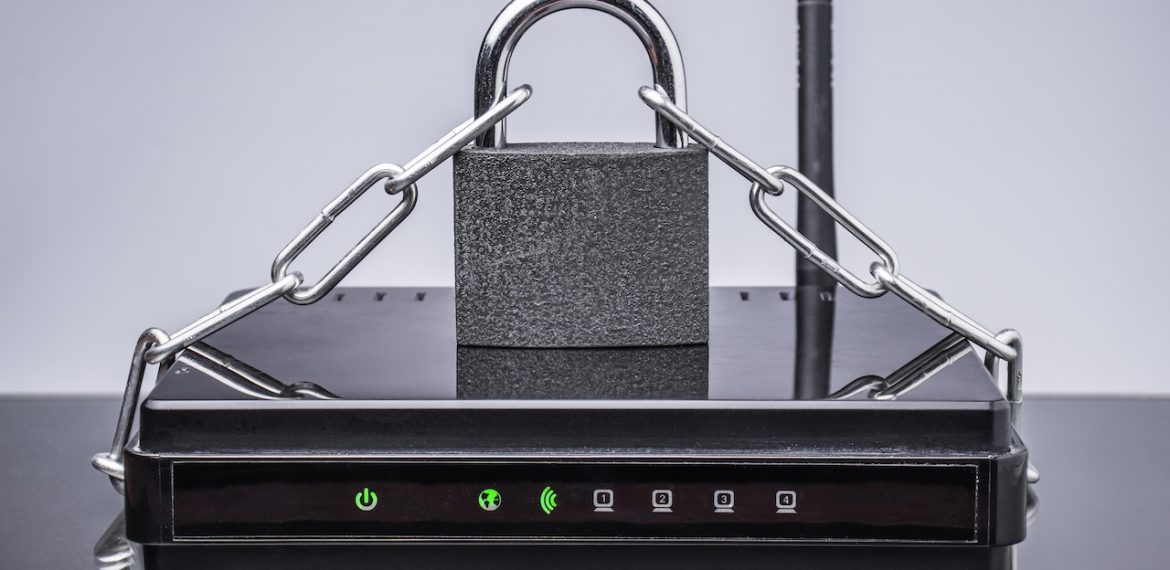
(Featured image by iStock.com/Igor Nikushin)
You must be logged in to post a comment.